Modbus Overview
The following documentation outlines how to connect to Modbus devices on the local network and collect data from them.
Modbus settings are found under the Modbus section of the sidebar.
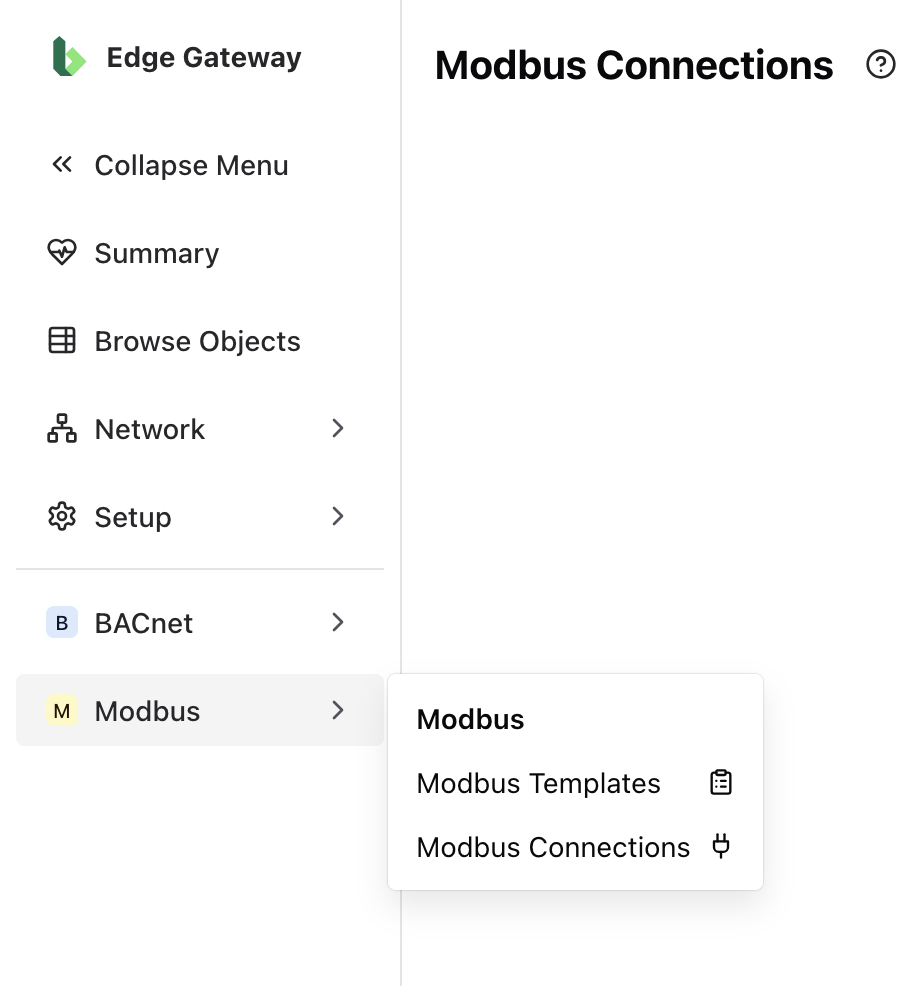
Modbus Templates
Before connecting to Modbus devices, the appropriate Modbus template must be loaded.
A Modbus template describes a class of Modbus device and its available registers. It essentially defines the properties of a device type or model, and the different data points available from it.
Each template must be a single CSV, but you are able to add multiple templates at once.
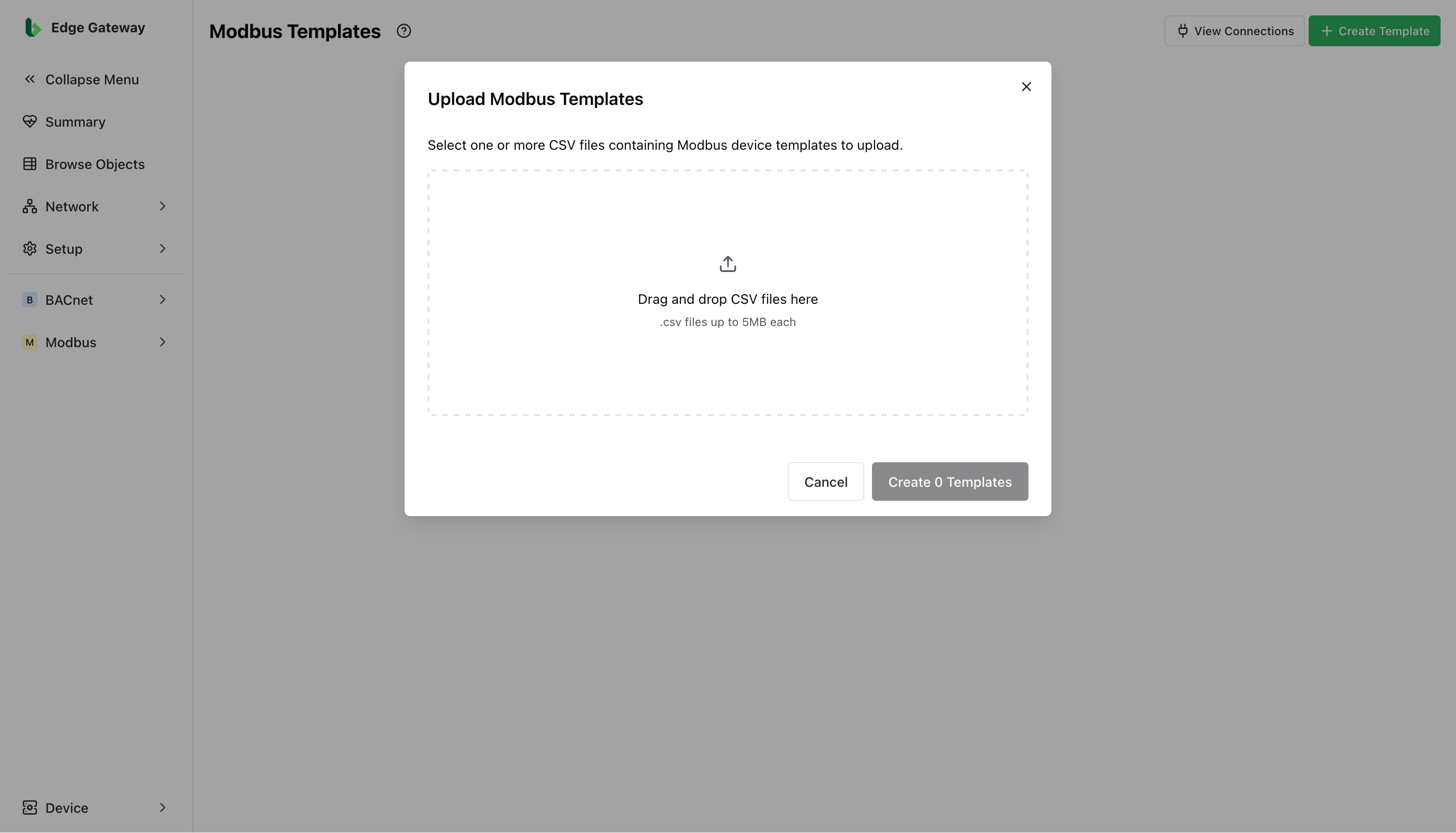
Modbus templates must be provided in the CSV format consistent with the example below. As you can see, the template contains both properties of the device and properties of each of the registers that device has. Definitions of each of these properties are also outlined below in the table. If you are unsure of what these properties are for a particular Modbus device, they should be obtainable from the manufacturer's documentation.
# uuid: 8109b1c9-10c0-4990-9ff8-15e9b4c901a9
# profileName: modbus_device
# highWordFirst: false
# endianness: ENDIAN_BIG
Register Type,Name,Address,Data Type,Units,Scale Factor,Offset
3,Register 0,0,UINT16,None,1,0
3,Register 1,1,UINT16,None,1,0
| Field | Description | Valid Values |
|---|---|---|
| uuid | User-defined unique ID for the template. | Any valid uuid e.g. generated here. |
| profileName | User-defined name for the template. | A short string. |
| highWordFirst | Which register to use first for multi-register values. | true (default) or false. |
| endianness | The endianness to use on register values. | ENDIAN_BIG (default) or ENDIAN_LITTLE. |
| Register Type | The register type. | 1 -> coil, 2 -> discrete, 3 -> holding, 4 -> input. |
| Name | User-defined name. | A short string. |
| Address | Register address. | An integer e.g. 2. |
| Data Type | Data type of the register. | INT16, UINT16, UINT32, INT32, FLOAT32 or FLOAT64. |
| Units | Unit of the register. | A short string .e.g. None, °C. |
| Scale Factor | A multiple to apply to the register value. | decimal number e.g. 1.3. |
| Offset | Offset added to the value applied after scaling. | decimal number e.g. -4.5. |
To make adjustments to a Modbus template, you must delete and re-add the template with the desired changes. You cannot delete a template if it is in use by any connections.
Modbus Connections
Once the appropriate Modbus template is loaded, you may create any number of connections to Modbus devices for which that template is appropriate.
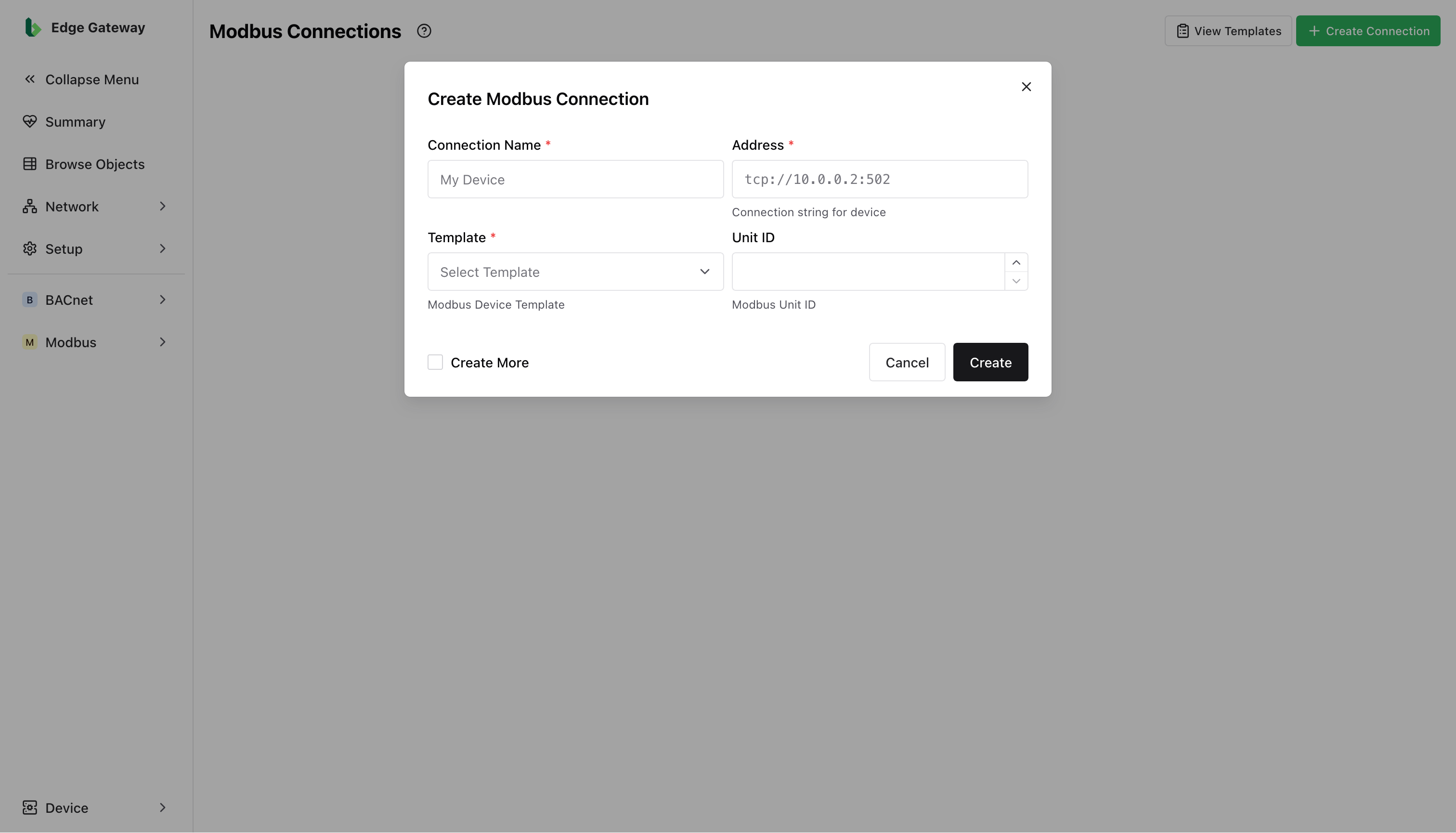
To do so, select + Create Connection, as can be seen in the top right corner of the image above, and fill in the dialogue that opens with the connection details for the device you would like to connect to.
| Field | Description | Valid Values |
|---|---|---|
| Connection Name | User-defined name for this connection. | A short string. |
| Address | IP address and port of the device. | ip address:port |
| Template | Template provided as described in section above. | Drop down. |
| Unit ID | Modbus Unit ID (relevant if device connected via a Serial Connection to a Modbus gateway on the TCP/IP network). | An integer. |
Once the connection is created, you should be able to see a record of it on the Modbus Connections page, including its current status. If this status is not Connected, there may be an issue with the network, the device, or the connection properties. To make adjustments to a Modbus connection, you must delete and re-add the connection with the desired changes.
Once connected successfully you should be able to see devices and points in the Object Browser corresponding to the Modbus device and its registers respectively. Provided you have set up a Modbus Cloud Connection you will also be able to publish the points and data to the Bueno platform.